Office 2010: New Features

Update: Part two of the post highlighting changes in the Beta.
I had a feeling that 2010 wasn’t going to be an upgrade to Office like what Windows 7 is to the Windows family. Having said that, Office 2010 Technical Preview does show some promising upgrades. In between giving my exams I did find some time to play around with the leaked version of Office 2010 & found some improvements over Office 2007. One of the biggest additions to Office 2010 will be its online collaboration capabilities I wrote about & we have some proof of that in the current Preview build. Here are some noticeable improvements in the technical Preview build:
1. Built-In Screen Capture Tool:
A really handy addition & at the same time a beautiful implementation of the same. Word & Powerpoint both have the ‘Screenshot’ feature under ‘Insert’ & the useful part is that it caches screen shots of the currently open windows for one-click insert. At the same time also gives you the marquee select option. Screen shot of the ‘Screenshot’ feature:
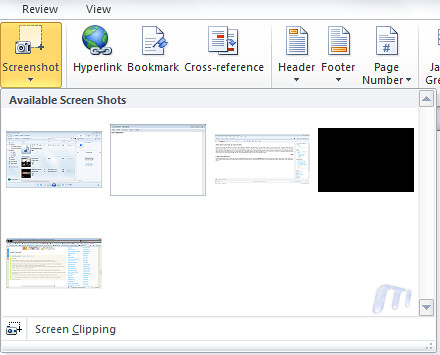
2. Background Removal Tool (for images):
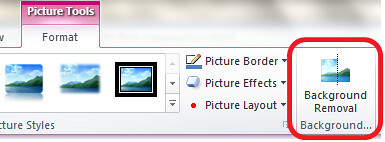
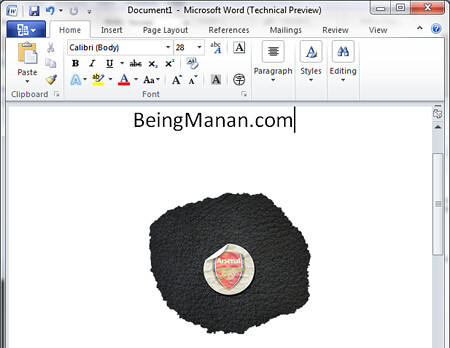
This is a feature that I’m sure quite a lot of us will be using. A neat addition to picture properties is ‘Background Removal’. To show you the power of this tool, here is an image that I inserted into a Word 2010 document:

And after using the tool this is what I got:

NOTE: No use of Photoshop AT ALL!
The tool also let’s you have certain amount of background left with edges & effects, screen shot:
Here is the Background Removal tool options tab:

3. Protected Mode:
I found this to be a good addition as a feature. Every time you download a document from the internet & open it, Word 2010 will open it in a ‘Protected mode’ that won’t allow you to edit the document unless you enable editing of the document. Screen shot:
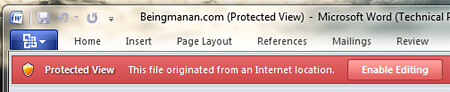
You can edit which file types are to be opened in the protect mode from the Trust Center panel. Screenshot:
.PNG "Office 2010 Technical Preview Trust Center")
4. New Smart Art Templates:
I gotta admit, I love ‘Smart Art’. It’s right up there amongst the best features in Office & in Office 2010 there are new templates added. Existing categories have new templates & there’s a new category as well. Screen shot:

5. Author Permissions:
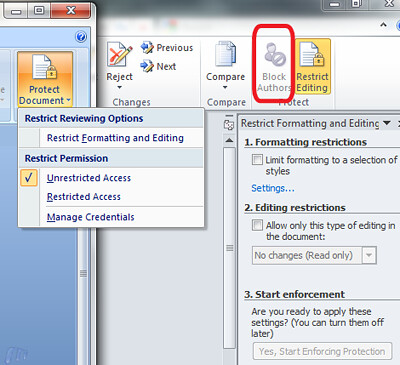
As I had talked about co-authoring a document & collaborating over the Internet will be one of Office 2010’s USPs, the ‘Protect Document’ option under ‘Review’ in Office 2007 has now been renamed to ‘Restrict Editing’ & a new tab titled ‘Block Authors’ has been added. Screen shot of the option in Word 2007 & Word 2010 side-by-side:
6. Completely Revamped Options Under the Office Button:
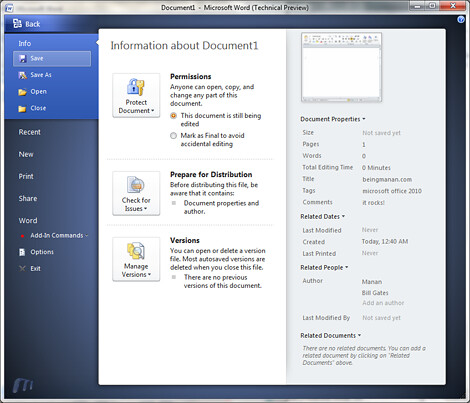
Office 2010 has introduced a huge a change in the document options that are presented to you under the Office button. One of biggest pains was the meta-data that can be added in a document. Quick access to permissions, document meta-data under document info. With Office 2010 you now have the option of saving your document to a SharePoint location as well. Screen shot:
7. A Kick-Ass Print Control Panel Under the Office Button:
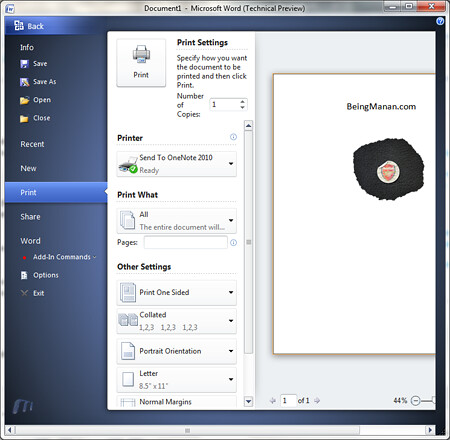
This is a fantastic addition, clicking ‘Print’ under the Office 2010 button opens a plethora of printing options. No need go through a ‘Print Wizard’ you can select all your print options from here & hit print. Screen shot:
8. Jumplists in Outlook 2010:
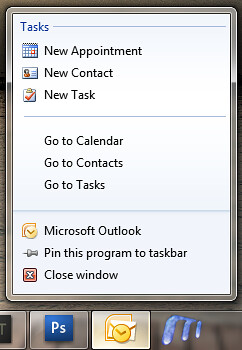
As you’ll might have seen, Outlook 2010 now makes use of Windows 7’s Jumplist feature for quick access to certain processes. Screen shot:
9. New Splash Screen
You don’t really figure out the awesomeness till you see the close & minimise options & the sleek animation.

UPDATE:
10. Powerpoint Gets Word 2007’s Equation Editor & New ‘Action’ Tab

Martin asked in the comments whether Powerpoint 2010 now has the Equation Editor & yes it does. Along with it, there is another tab – ‘Action’ which allows you to configure mouse-click or mouse-hover action of objects. Options include running a Macro or a program amongst others. Screen shot:

PS: I haven’t touched Excel, Access & others yet!
Update #2:
Have been lazing around about updating this post but here are some new features in Powerpoint 2010:
11. Broadcast Presentations To Your Clients:
I say this is one sweet feature! Now you can broadcast your presentations by sending the intended viewer a URL, this works along with Office Live Workspaces & you need an account of the same. Screenshot:

12. Record Slideshows As Videos!
Well, don’t know why this wasn’t there in O2003 or O2007. Screenshot:


13. Inserting & Editing Videos Is Painless & Fun:
I’ll be honest, I never really enjoyed inserting videos in my presentations ‘coz it wasn’t a pleasant experience. It sucked. Not anymore, check out these options, screenshot:


14. Compress Media While Saving Presentations
As shown above, the all new file menu, known as — Backstage gives you options to compress the media files inserted in the presentation to reduce file size, it even gives an esitmate of the presentation size. Screenshot:

15. New Animations & Slide Transitions
My favorite from the new ones is the Gallery transition effect. Another addition to transitions is that the % can be defined. Screenshots:


16. Save File Notification
When closing an unsaved file Office 2010 now lets you know that it has auto-saved a draft. Screenshot:

17. New Icons:

18. Hide Ribbon:
With Office 2010, a cleaner interface has been worked upon. There is now a single-click show/hide option for the Ribbon. Screenshot:

~Enjoy
UPDATE #3: Office 2010 Beta New Features & Changes
UPDATE #4:Microsoft To Integrate Outlook With Social Networks
UPDATE #5: Read-Out-Loud & Quick Translation

Many interesting additions.
Nice compilation.
Why is the Microsoft Word icon upside down (see taskbar screenshot)? It’s it playing off that it looks like an M for Microsoft?
Shawn – that’s not a Word icon in taskbar. It is familiar, but can’t place it.. Looks like something I saw on a Mac, but really don’t remember which app it was :D
It’s in some of the Word screenshots too. It seems to resemble the Mac Word logo, somewhat at least. Just caught my eye.
I would settle for word not:
1) crashing and trashing my documents
2) being able to select a font (I have to click on the font 8 fonts below the one I want to get it)
3) not have word randomly move the cursor to different parts of the page while I am typing
4) stop defaulting to the US dictionary, especially after I change it to a non-US dictionary
5) being able to open and save files consistently without crashing
6) stop randomly inserting blank lines that can not be deleted when a footer is inserted
I have had all of these problems on my machine (and co-workers’ machines) at work, the IT team is constantly coming to fix it. Most everyone gets frustrated but just seem to treat it is normal or “just part of doing business”
I think you’ll find it’s a watermark added by the author of this website… go to the top of the page and look at the logo :)
Word has a great Find pane now. Ctrl+F.
Word also features the new Text Styles – similar to WordArt but different. Pretty sure this wasn’t in Office 2007
That was available in Powerpoint 2007 ;) (Under Insert -> Wordart) :)
@Shawn, @Will is right about the icon
Does Powerpoint 2010 get Word 2007’s formula editor? That would be great.
Yes it does! Damn wonder how I missed this! Post updated. Thanks for the heads-up :)
One new feature you’ve missed which is a real boon to lovers of good typography is the introduction of full support for OpenType features like ligatures (?, ? etc.), different ‘cases’ of numbers etc. This has been long-awaited by a sizeable number of people, myself included.
It’s definitely in Word 2010 but I’m not sure if it’s anything else – I’d guess (sadly) not but correct me if I’m wrong!
Guess your blog form doesn’t support ligatures :) My previous comment included the ligatures for ‘fi’ and ‘fl’ but each became ‘?’ when I posted.
You’re right, WOrd 2010 has support for Open Type Ligatures. I found this article on ligatures in Word 2010. :)
Very nice compilation. But I have trouble getting all excited about those new features.
The Background Removal Tool seems interesting.
MS word 2010 will be packed with lots of text and image formatting options and tools, waiting for official technical preview to out, i used the leaked version too because of curiosity….it is awesome….
Love the Office Button’s new Print Settings menu!
they should give us one ribbon that we can customize.
in word 2003–i have all of the commands i use–accessed with 1 click. in word 2007, i have to go to various parts of ribbons and some of my features aren’t even there.
also–please fix the 5160 avery label mail merge bug. that should be fixed in 2007 but still isn’t. that is the reason i went back to 2003.
Your an idiot…half that stuff was integrated into office 2007…do your research.
^^ Such as?
yea, kind of rude.
and since i wrote, i have discovered that office 2010 does allow ribbon customization (not available in 2007 other than with an add-on that is okay but a little flaky). nice.
Microsoft have a tought job with Office 2010. The components have generally been around for a long time and have already had a great deal of work to improve them and include new features. There are some genuine new technologies and ways of working to address, plus all the hours put in looking at how users interact with the products and how to improve that interaction. That said, there is a lot of pressure to produce an up-grade that encourages people to move to the new release (and pay some money for it). As an Office 2007 user I hardly use any feature that wasn’t there in Office 2003. I have friends with earlier versions who are happy and don’t want to move on. At the end of the day, its a word processor or spreadsheet.
Fabulous features.
Lots of features.. but will put it this way. 2007 was a quantum leap over earlier versions.. not just look.. but file size, filter, classification of tabs etc Also integration with MS products had been increased
The above improvements are all linear and not radical.. dont know if one should change over from 2007 to 2010
Hi devaranjan, thanks for dropping by. Agreed with your point and I did pose this question to 10 year Microsoft Powerpoint MVP Geetesh Bajaj in our podcast and he pointed out that companies skip versions and there are a lot of them who are still on Office 2003 because of the file format change change etc. introduced in Office 2007. It is them who Microsoft will target as potential customers and not necessarily Office 2007 users. :)
You can listen to the podcast here — http://bit.ly/mstalk02 :)
A big lep if you are one of those Microsoft customers using office 97, xp or 2003, but not a quantum leap if you are familiar with 2007.
No doubt once microsoft will reverse engineer nice stuff into service packs for office 2007.
Pity email formats haven’t moved further forward?
No wonder the bulk email companies are thriving!
New version looks really great.
I haven’t seen any mention of using animated backgrounds in PowerPoint. Has Microsoft not incorporated this? It would be a very handy feature and would save going to a third party provider.
it is sooooooooo cool!!!!@#$%^&
Thank U very much for this wonderful review..
Interesting Adds for the new Office !!
Hmm, not many great features, or anything that would make me pay a few hundred for the software.
I like this software and it is really easy to use and with more features…..intersting
i think i would still stick to the older version i have! imo, the features that are added in the newer version are not worth enough for spending $$$
@manan
hey mate i am havig problem with the images, some of the images are not loading correctly.. please check it
thanks
-Adil
Hi Adil, well if you have Office 2007, there’s no need to upgrade on launch. You can wait till you buy a new PC. Also, there’s an offer from MSFT, if you buy or activate Office 2007 from today onwards, you will get Office 2010 upgrade for free :)
Regarding the image: I’ve hosted them on Skydrive and some images start acting when I’m out of bandwidth there. :( Will move them elsewhere :(
Spell check in Powerpoint was awful if you chose another language, it seems to be related to keyboard setting etc. So whenever you create a new slide or text box you have to manually change spell check settings. Word is much easier. Also some sort of Review markings in PPT, not just Word would be nice when several people edit one PPT file. And if Access2010 could have some technical improvement, like query speed or file capacity not being limited to 2GB.
This is perfectly fine, It will remove all of our headache and save our time as well.
great content and useful stuff… looking forward to get my hands on office 2010 official release
Action was in Powerpoint 2007, ya know.
I have been using Office 2010 RTM for the past week, but I am going to have to switch back to Office 2007.
Office 2010 includes a bunch of nice-to-have features, but it is as unstable as hell. I’ve spent the past couple of days losing work on a document I was working on. Won’t be trying Office 2010 again before SP1 comes out.
That’s surprising, you’re the first to say that it is unstable. Could you share a bit more about what the doc was and any specific errors?
Very nice compilation and well written also. Loved the way you set up your article! also, nice pictures…where did you get them?
Thank you :) They are screen shots I took and then edited to suit the blog post. :)
You are welcome mate! ;) keep the good work up! Gonna read you post more often! :)
Heh, how about what’s NOT there: An option to turn the godawful ribbon off and have 2003 style menus.
Three years of using Office 2007 and I still can’t find stuff.
Forced to use it in the office, but at home it’s Office 2003 for me.
maybe you should take 2 seconds to learn where stuff is instead of complaining about it, it’s not that hard. Office 2010 is grrrreeaaaaat!
Bullshit:
1. the new Splashscreen is not interesting.
2. Protected mode is less efficient because I need an additional click to edit documents.
3. Revamped options: just needs additional learning after people have successfully moved from 2003 to 2007.
4. New Icons: i love staring at them when I have nothing to do. Who the f*** cares about those icons?
have they fixed word’s inability to open documents larger than 512 megs? (Yes there is a use for this)
Have they fixed the time waster when using file open, i.e., when you scroll through the screen to find the doc then mis-click and open the wrong doc, close it and return to file open the prog takes you back to the first file in the list then you waste time by scrolling again?
Your comments seem to be in line with the effort in software dev to turn everything into Television or Facebook. We already have tv and FB and we certainly don’t need any more of either.
And you don’t discuss how many more clicks (time wasting clicks) are needed to do something. Office 07 pretty much doubled the click count over 03, and from your descriptions it sounds like 10 means yet more clicks.
All in all, cute for ad people who use more images than words, but not worth paying money for.
I like the Kick-Ass Print Control Panel Under the Office Button but how do I get back to my document if I decide not to print at that time or need to make a change?
Just click on any of the tabs. Home for instance!
Duh I didn’t even see those tabs – I kept looking at the strip and icons running down the side!!! Thanks.
MS Word Starter 2010 preloaded with new hp laptop, not responding, Shows down loading MS Word
Starter 2010 (99% complete)